Halloween HTV T-Shirt | Silhouette Heat Transfer Material
Hey everyone!
Vicky here from Cut That Design!
I am excited to bring you my first post as part of the Silhouette UK Design Team.
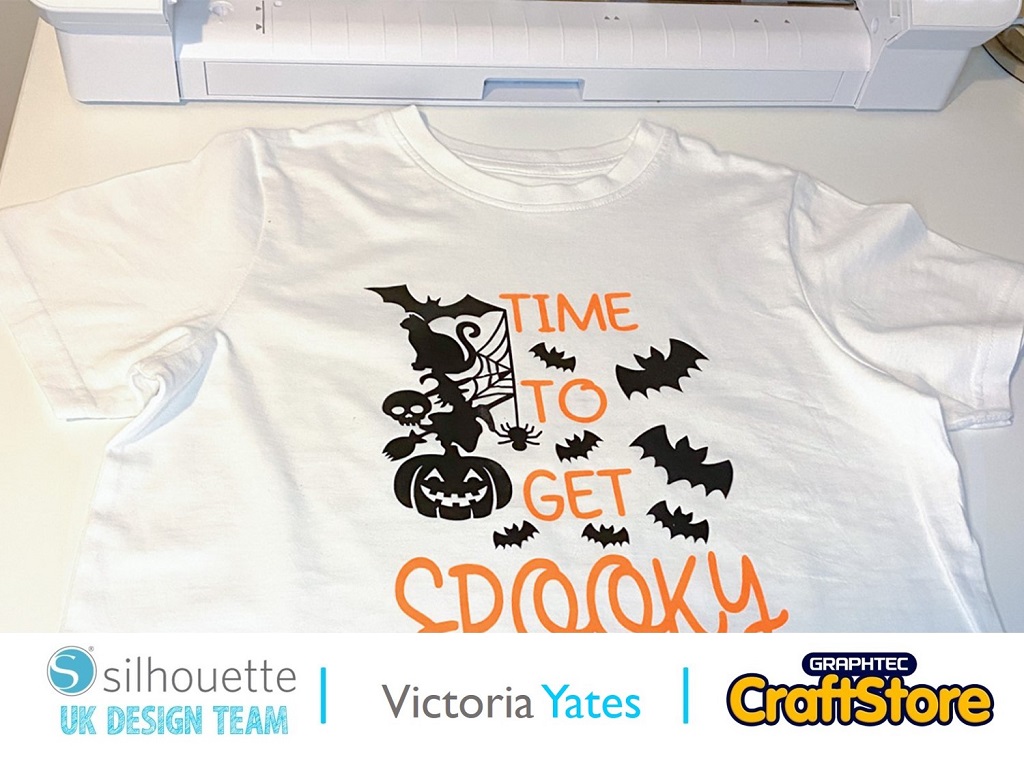
In this Halloween themed post I have used Heat Transfer Vinyl (HTV), and design elements from the Silhouette Design Store to create a spooky T-shirt for my son!
Although I have had various Silhouette machines over the past 6 years, it was the first time I’ve ever used HTV, and I loved it.
So, let’s get started!
Items you will need:
Heat Transfer Vinyl – Black
Heat Transfer Vinyl – Neon Orange
T-Shirt
Iron / Heat Press
Cloth
For this design I knew I wanted to have design elements as well as a quote, so I went for look in the Silhouette design store.
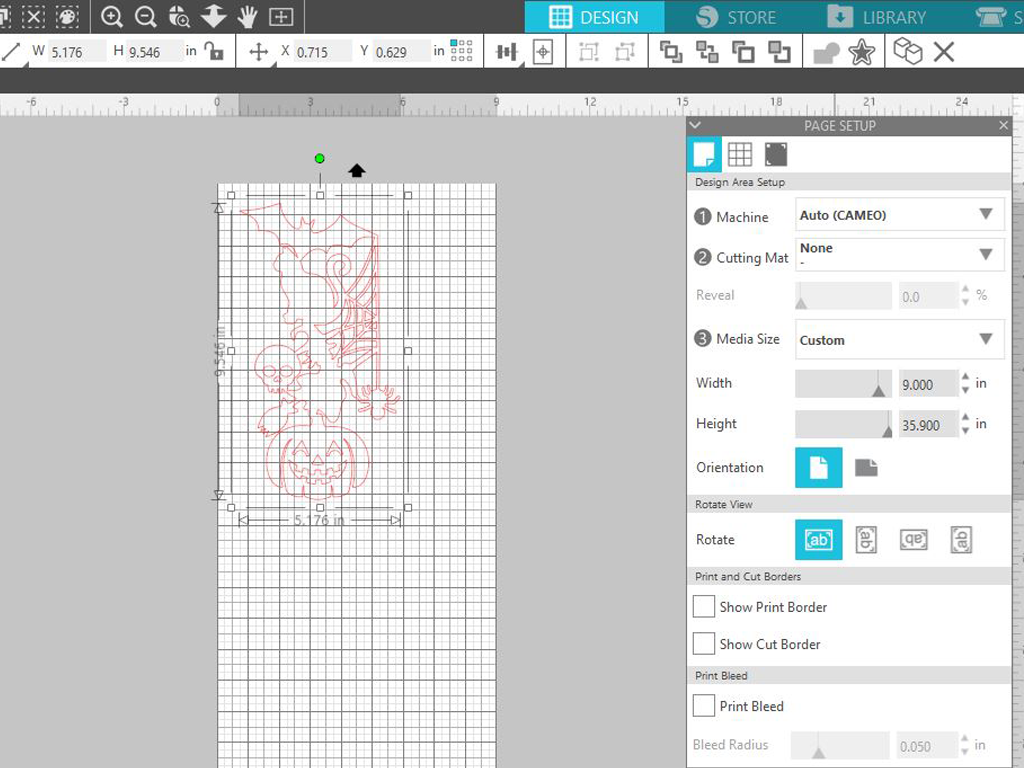
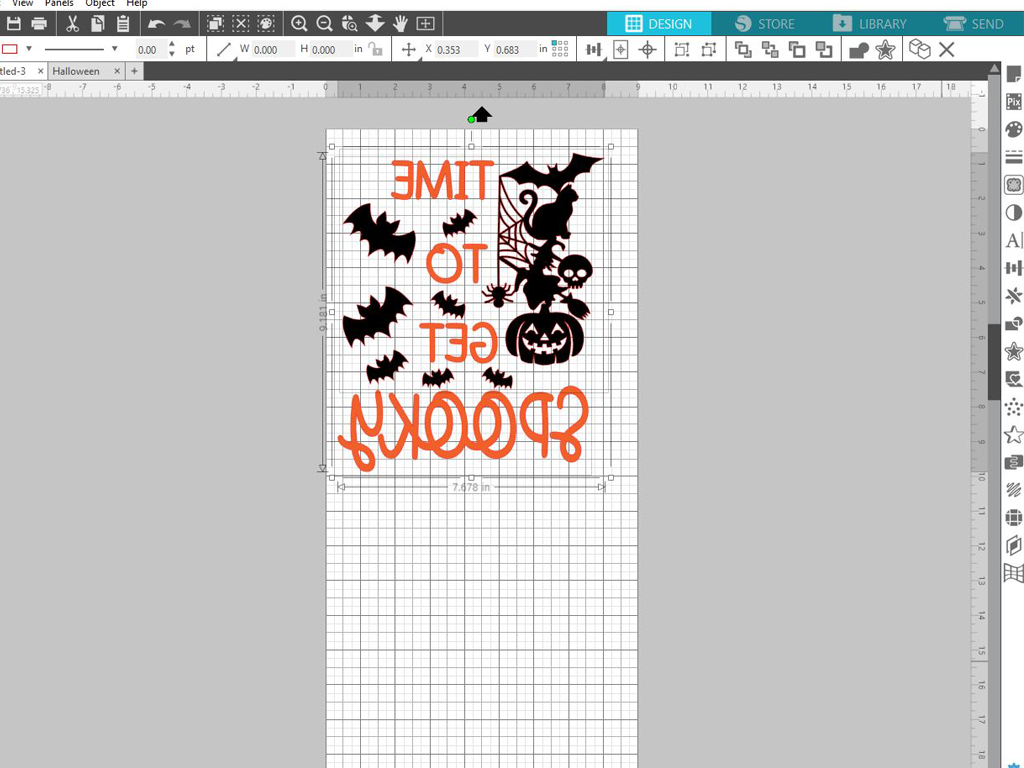
I downloaded the Halloween Totem Design and opened it in Silhouette Studio. Then using the Page Setup Tab, I set the values to reflect the size of media I was using, I also chose no Cutting Mat, as I used the Roll Feeder that comes in built with the Silhouette Cameo 4!
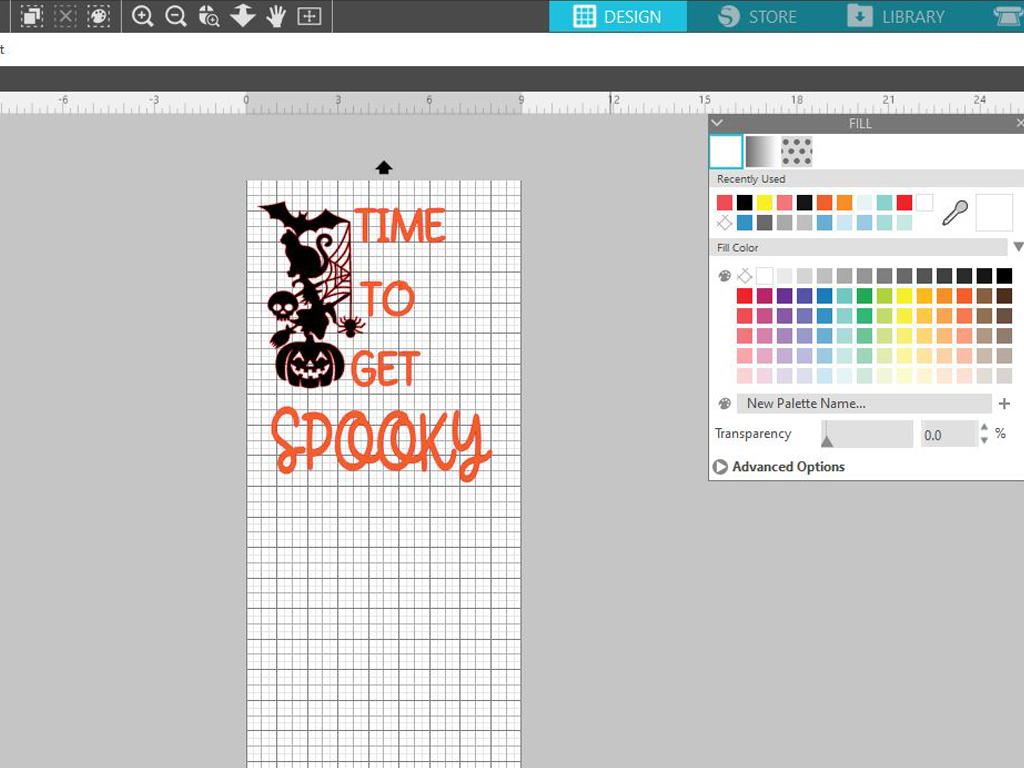
Next, I chose a font I wanted to use for my quote ‘Time to get spooky.’ I used a font that was already on my computer, not one from the design store. I typed each word in a separate text box, as this makes it easier with arranging the words to fit the design.
I spent some time placing the text against the Halloween Totem design and finding the layout I was most happy with. I have used the fill colour tab to colour in the text and design based on the colour of HTV that I will be using.
After I was happy with the text layout, I felt the design needed that little bit extra! I went searching in the design store for some bat silhouettes.
I purchased and downloaded the Bat Halloween Set I then clicked on File – Merge to open the Bat Halloween set in the current design area.
I chose to work with just one of the bats, the one on the top right. Although, I know the other bat silhouettes will come in handy for future Halloween projects!
I ungrouped the bats and deleted all but the one I wanted to use. (Right click – Ungroup) I then duplicated the bat.
To duplicate you can either click the ‘alt’ key and then drag the design with your mouse or click on object – Replicate – Duplicate.
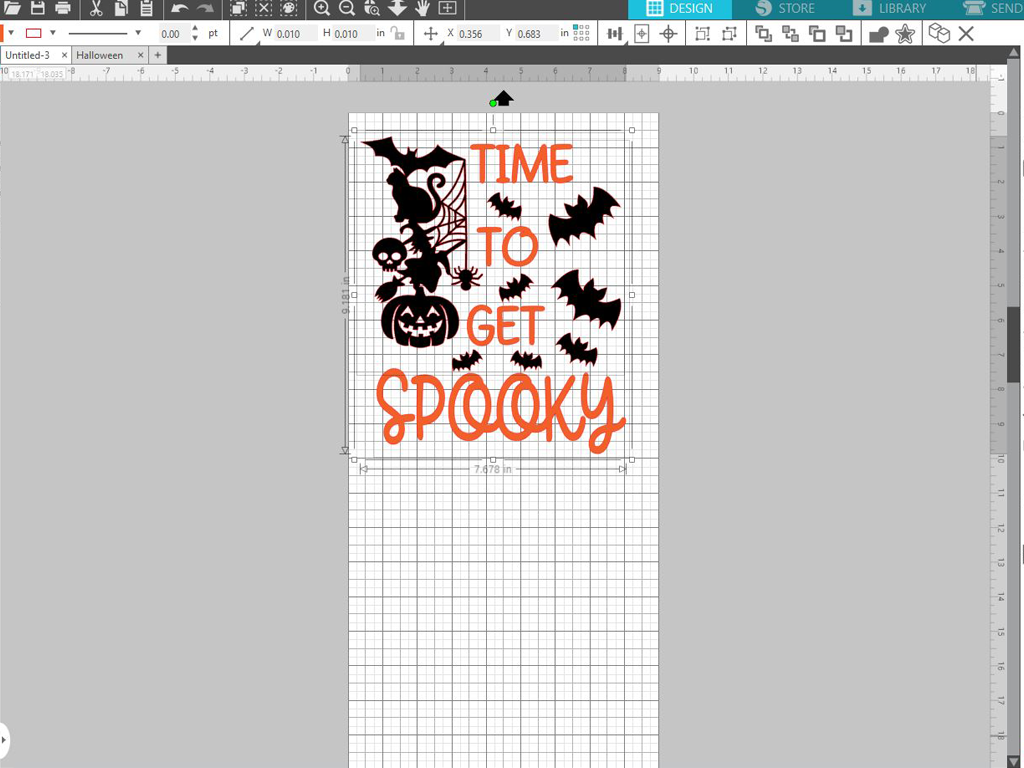
I duplicated 7 bats all together, I resized some of them and I rotated them, and arranged the bats around the text, until I was happy with the overall design.
I measured the T-shirt I was adding the design too, I then re-sized the design in Silhouette Studio accordingly.
Before I went any further, I mirrored my design! I then grouped the design by colour, as this will make it easier when sending each colour to cut.
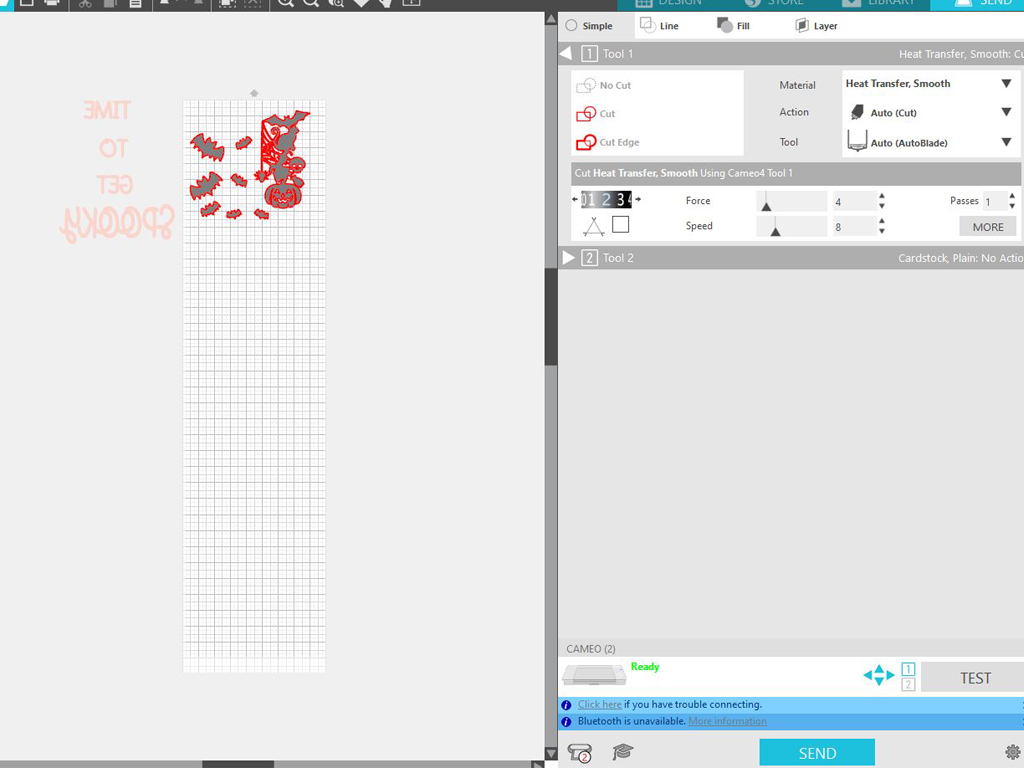
I clicked on the send option and input the material setting; I also used the default cut settings.
I loaded my Cameo with black HTV (shiny side down) and moved the text part of the design out of the cutting area and pressed send.
I repeated the same step this time with the orange HTV.
Next, I weeded the vinyl so that only the design and the clear backing remained.
I then positioned the design on the T-shirt, with the clear backing facing up. The design will no longer be reversed.
I used my iron for this next part, I placed a Tea Towel over the design and applied pressure with my iron for around 45-60 seconds.
I checked to see if the HTV has adhered to the T-shirt, by gently peeling the clear plastic sheet back, the HTV was still sticking to the clear sheet so I applied more pressure with the iron for another 20 or so seconds.
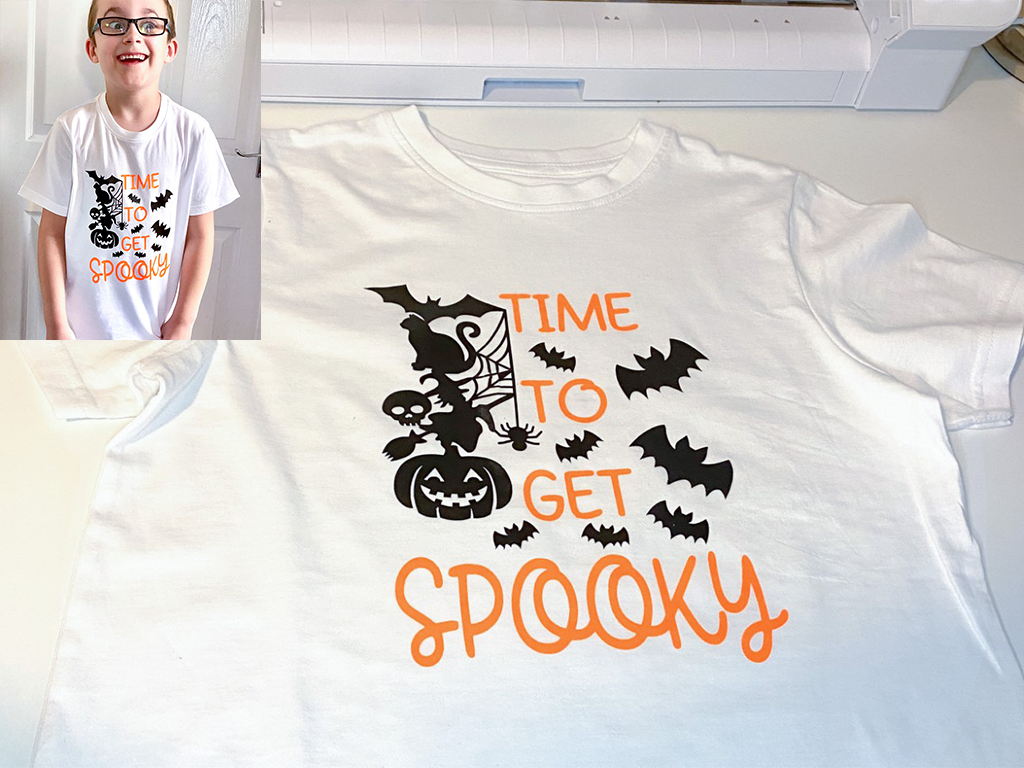
Once the clear plastic backing came away and the HTV was adhered to the T shirt. My design is complete!
I had a lot of fun putting the design together for this project, it was my first time working with HTV, and the only error I made was putting the HTV in my Silhouette the wrong way!! Ooops!! I think I may have to put a heat press on my Christmas list this year!
My son was over the moon with his new T-Shirt, as you can see from his cheeky face in the picture of him modelling it!
I hope this post has inspired you to get creative with HTV and to mix and match the awesome designs in the Silhouette design store.
Happy Crafting!
– Victoria Yates –