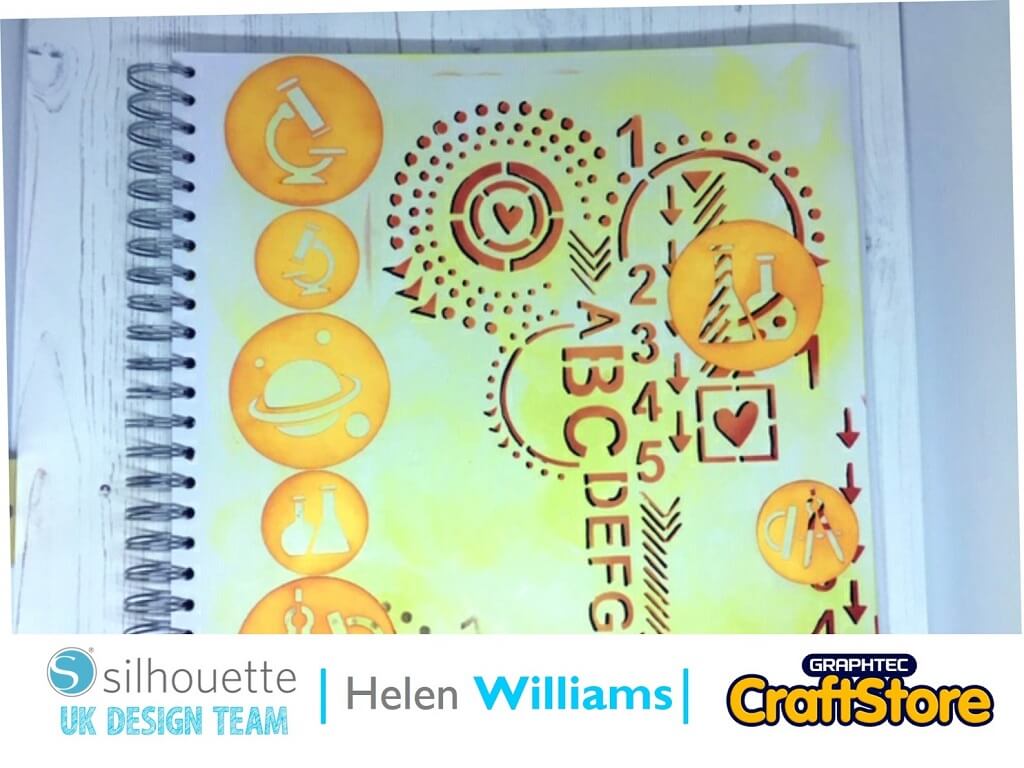
School’s Out | Helen Williams | Silhouette UK Blog
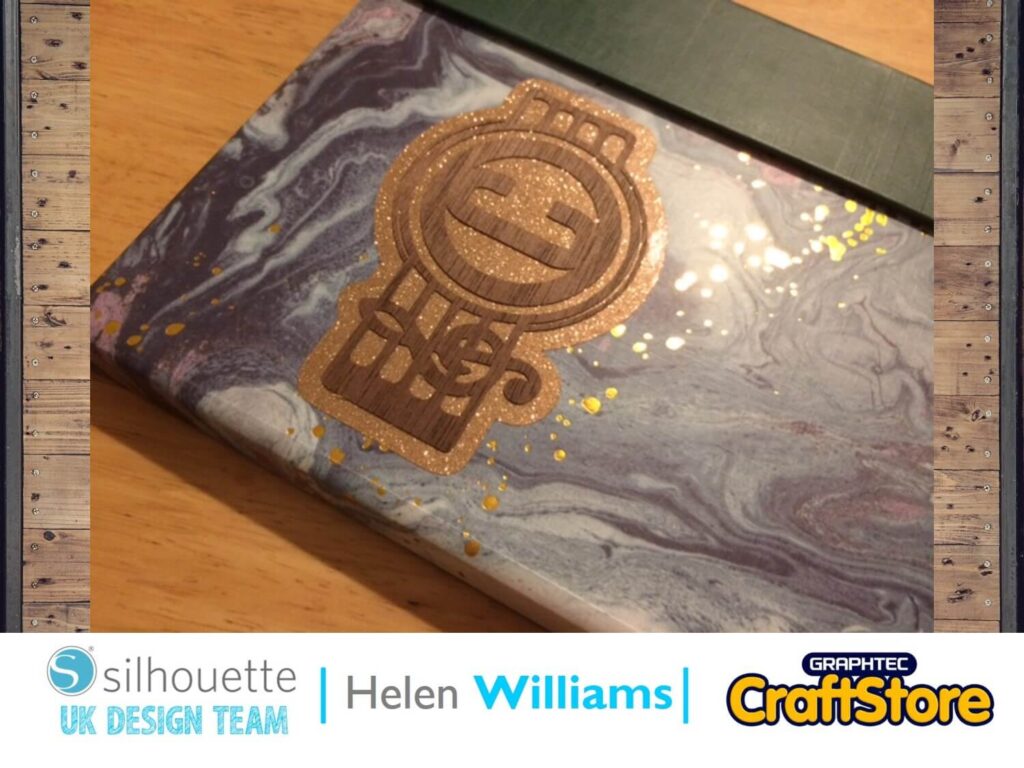
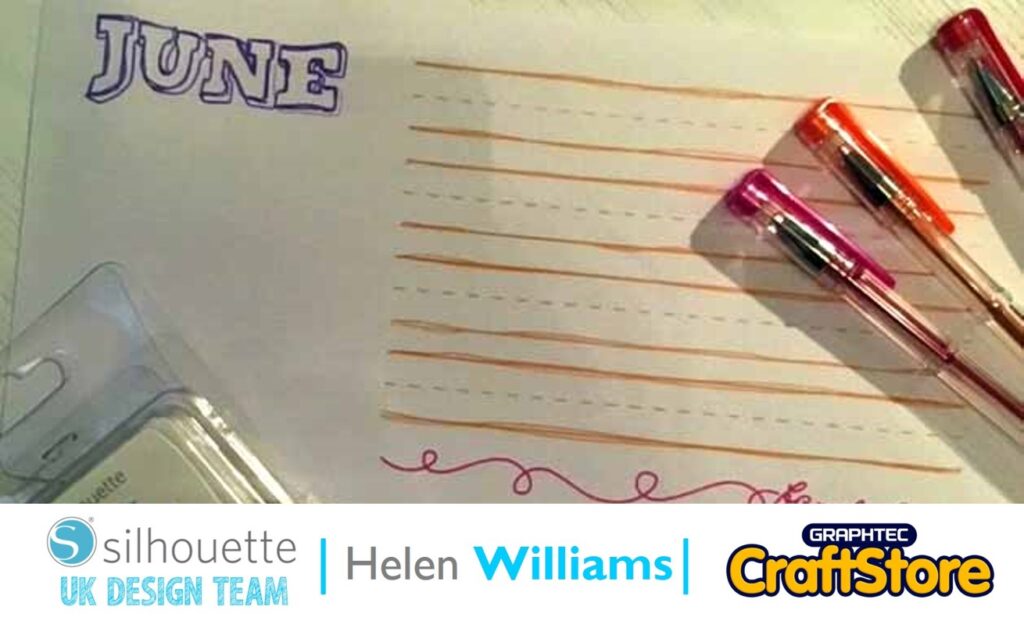
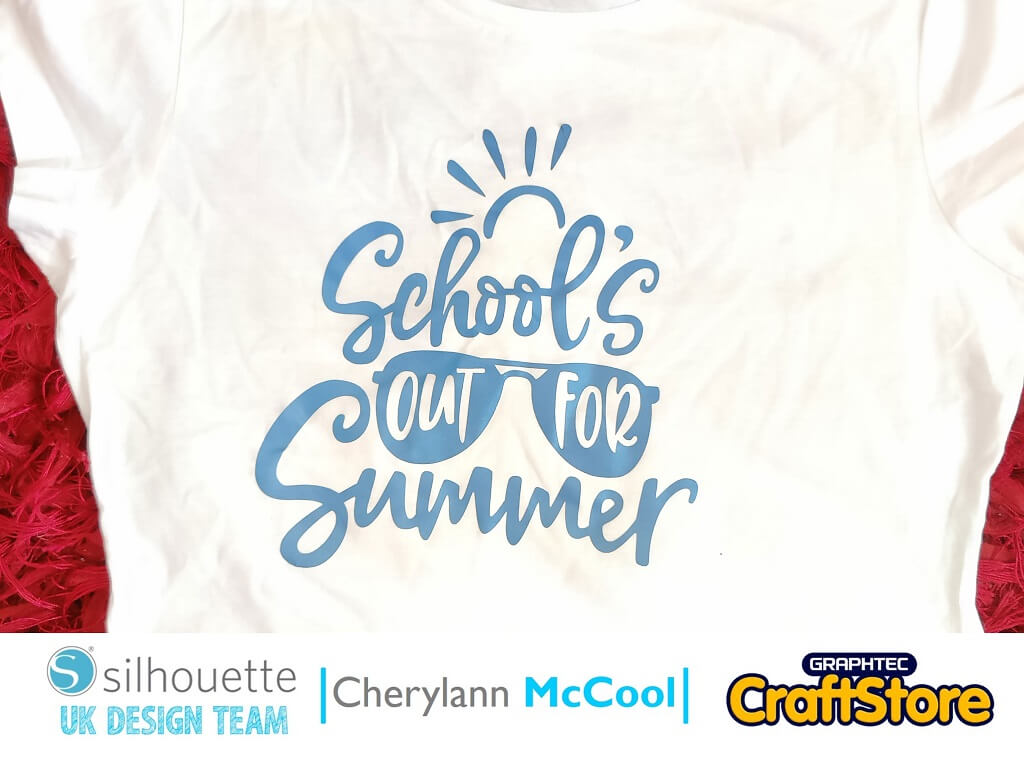
School’s Out | Helen Williams | Silhouette UK BlogSchool’s Out Scxrapbook Page | Using Silhouette Stencil Material It’s nearly the end of the school year with one week to go…
PLEASE NOTE THAT THE OFFICE WILL BE CLOSED FROM 12PM FRIDAY 20TH DECEMBER 2024 AND WILL RE-OPEN ON THURSDAY 2ND JANUARY 2025
ORDERS FOR DELIVERY PRIOR TO CHRISTMAS WILL NEED TO BE SUBMITTED BY 2.30PM ON THURSDAY 19THDECEMBER 2024.
ORDERS RECEIVED AFTER THIS TIME AND DATE WILL BE DESPATCHED ON THURSDAY 2ND JANUARY 2025.
Merry Christmas & A Happy New Year to all our customers. Thank you for your continued support.

Hi Cheryl here again.
Wow, what a long old month January was!
There are a lot of special occasions popping up in the next few months and if you like to have a takeaway at the weekend why not take part in making this project, it’s loads fun to make.
• Silhouette Printable Cotton Fabric
• Cardstock
• Paints
• Glue or DST
• Ink
In your Silhouette Studio software open your files in the design space and in the page setup box to the left of your grid you will want to check your machine in option 1 is correct, then in option 2 select the mat size you will be using and finally in option 3, select the size of your media.
Now you want your design to fill as much of the space as possible. To do this click to get the black box around your design and if you click on the small squares and drag them out for your design to increase in size.
Once you are happy with the size of the design, place your card onto the mat and load your media and mat into the machine.
Next, check that all of the options are correct, e.g material should be plain, cardstock and if happy then hit send at the bottom and your machine will start cutting your design.
Once your machine has finished cutting remove the card from the mat and remove the excess.
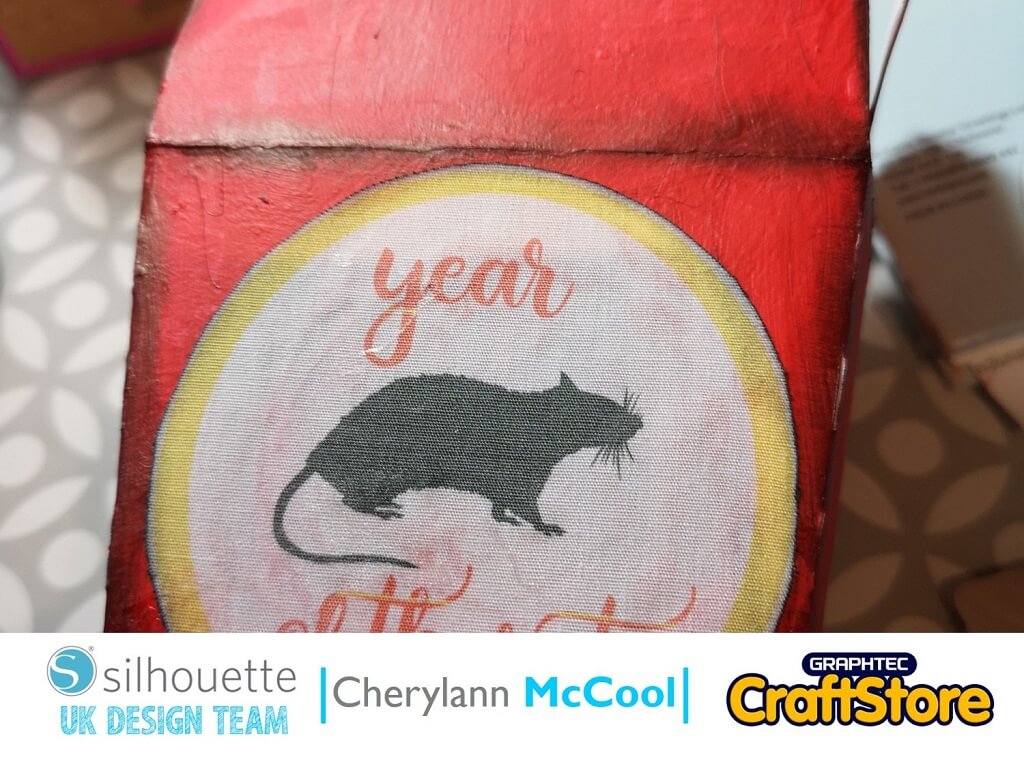
Now you want to load your rat design onto your mat.
If you go to view up on the top of screen and choose registration marks and on the right-hand-side your panel will change, now, if you click ON you will see your mat change.
Next, on the very right side where the symbols are, choose page setup again and here you want to change your media size to Letter and tick the boxes in print and cut borders, you will see your mat decrease a little.
For this part we want to decrease the size of the rat to a smaller size.
Now on the very left hand side click the rectangle option but choose the oval shape and create a circle around the rat, then, if correct right click on your mouse and choose duplicate and you will get a second circle appear.
Now you want to make a slightly bigger circle around the rat. Above and below the rat type year of the rat in font of your choice and you will have to decrease the size to fit.
Now you want to go the paint palette symbol on the very right hand side and you will see colours.
Now, click on the rat and choose grey and for the text and space between the circles pick colours of your choice.
Now if you wish to put a label on the back you can follow the same steps making sure that you right click and group all the pieces. Then you want to put your cotton fabric and put on mat and then hit send.
At this screen you want to make sure when you change your material that you choose Cotton Fabric Printable and then hit send to cut.
Once cut remove from mat and remove the excess and now its time to build it up.
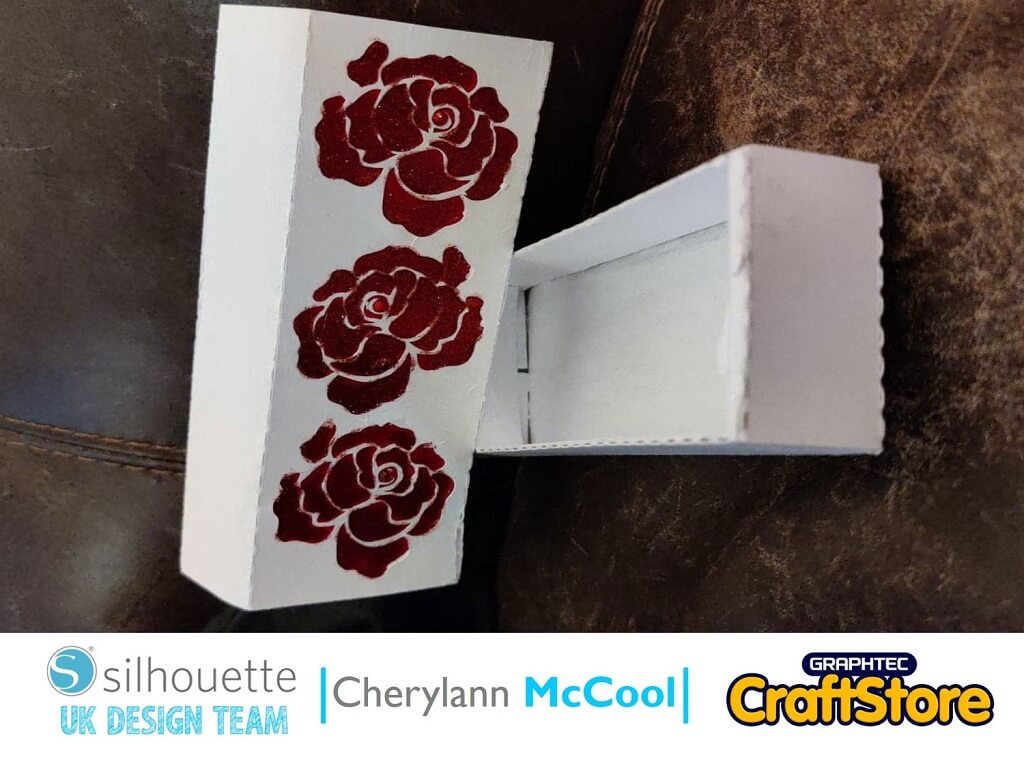
Now you want to build up your box by following the lines on your box as the corners need to be folded into like a W shape and as you do this your bottom will hold the shape and as you fold the w shape you can glue them to the sides and then you fold the inner tops then with the outer sides you slide them in to hold in place.
Now once you have built the box you can paint or ink the box and then you attach the two labels and voila its all done.
I have had great fun making this box and using the cotton fabric is a fantastic material that I will definitely be using again and this box really was great fun to make and ideal for theme nights but it has so many uses.
If you liked this project then you should hop along to see what I have made.
I hope you all have fun making one and if this one has made you hungry wait until you see my next project.
Bye for now!
– Cherylann McCool xx –
• Design Used: Box
Design Store Artist: Silhouette
Design ID: 1153 > Download
• Design Used: Rat Silhouette
Design Store Artist: Sarah Bailey
Design ID: 21880 > Download